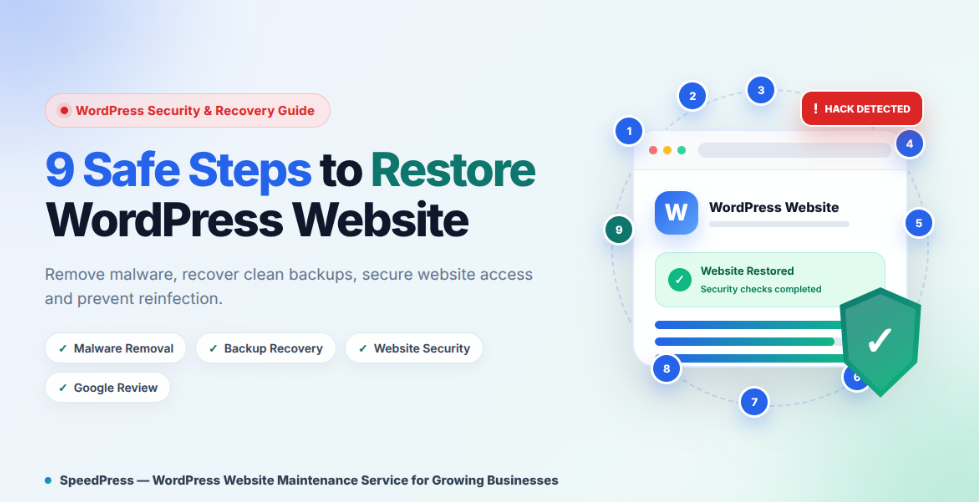
Need to restore WordPress website access after a hack? You may see spam pages, strange redirects, unknown administrators, or Google security warnings.
This can damage trust, sales, and search visibility. However, deleting one suspicious file may not remove the full infection.
This guide explains how to restore WordPress website files, data, and access safely. You’ll also learn how to prevent the same attack from returning.
Quick Answer
To restore a hacked WordPress website, first restrict public access and save a full incident backup. Then secure your hosting, domain, email, database, and file-transfer accounts.
Next, restore a verified clean backup or rebuild infected files. Remove unknown access, update all software, reset passwords again, test the website, and request a Google review when needed.
What Does It Mean to Restore WordPress Website After a Hack?
A hacked WordPress website restore returns the site to a trusted state.
It isn’t only a backup restoration. A complete recovery should:
- Remove malware
- Delete unknown users
- Close the original security weakness
- Remove hidden backdoors
- Secure login details
- Update outdated software
- Prevent reinfection
A hack may affect WordPress core files, plugins, themes, database content, user accounts, redirects, scheduled tasks, and search results.
This guide is suitable for beginners with hosting access. However, a large store, membership site, or suspected server breach may need professional help.
What You Need Before Starting
Prepare:
- Hosting control panel access
- Domain and business email access
- WordPress administrator access, when available
- SFTP, SSH, or File Manager
- Database access through phpMyAdmin
- Google Search Console access
- A clean computer
- Any backup created before the hack
- A safe storage location outside
public_html
A full WordPress backup normally includes both files and the database. Files contain code, themes, plugins, and uploads. The database stores posts, settings, and users.
Choose the Right WordPress Website Recovery Method
You Have a Clean Backup
Use a backup created before the earliest suspicious activity.
Don’t choose a backup only because it predates the visible problem. The website may have been infected earlier.
You Don’t Have a Clean Backup
Replace WordPress core, plugins, and vendor themes with trusted copies. You must also inspect custom code, uploads, users, and database content.
You Can’t Access WordPress
Contact your hosting provider. Ask them to restrict public access, preserve logs, restore account access, and scan the hosting account.
Several Sites Share One Hosting Account
Treat the whole account as potentially compromised. Another infected site may reinfect the restored website.
How to Restore WordPress Website After a Hack
Step 1: Isolate the Hacked WordPress Website
Purpose: Protect visitors and stop further damage.
Use a hosting-level control:
Hosting Dashboard → Security → Password Protection
You can also ask your WordPress hosting provider to suspend public access temporarily.
Avoid installing a new maintenance plugin during the infection. WordPress itself may already be compromised.
Record:
- When you noticed the problem
- Affected URLs
- Suspicious redirects
- Unknown users
- Recent changes
- Browser or Google warnings
Expected result: Visitors can’t access the unsafe website.
Common mistake: Deleting suspicious files before saving logs and evidence.
Step 2: Back Up the Hacked WordPress Website
Purpose: Preserve evidence and prevent data loss.
Go to:
Hosting Dashboard → Backups → Create Backup
Download:
- All WordPress files
- The full database
- Access and error logs
- Lists of users, plugins, and themes
Name it:
Infected Incident Backup — Do Not Restore Publicly
Store it outside the live website folder. Otherwise, sensitive backup files may become public.
Expected result: You have a complete copy for investigation or emergency recovery.
Step 3: Secure WordPress Website Access
Purpose: Stop the attacker from changing the site during cleanup.
Use a clean device. Change passwords for:
- Hosting
- Domain registrar
- Business email
- SFTP, FTP, and SSH
- Database account
- CDN or firewall
- Google Search Console
Also enable two-factor authentication where available.
Temporarily reset WordPress admin passwords too. However, reset them again after restoring the database.
Common mistake: Changing only the WordPress password.
Step 4: Check the WordPress Website for Malware
Purpose: Understand what the attacker changed.
Ask your host for a server-side malware scan.
Also review:
- Recently modified files
- Database changes
- WordPress users
- Scheduled tasks
- Redirect rules
- DNS records
- Other sites in the same account
If WordPress still works, install a trusted security scanner:
Dashboard → Plugins → Add New
Run a complete scan. Still, one clean result doesn’t prove the entire account is safe.
Check:
Search Console → Security & Manual Actions → Security Issues
Also check:
Search Console → Security & Manual Actions → Manual Actions
These reports are different. Security Issues covers harmful activity. Manual Actions covers Google Search policy violations.
Step 5: Restore WordPress Website From a Clean Backup
Purpose: Return the website to a trusted version.
Go to:
Hosting Dashboard → Backups → Select Restore Point
Restore in this order:
- WordPress files
- The database
- Correct database details inside
wp-config.php, when required
Keep the website private after restoration.
A clean backup may still contain the vulnerable software that caused the attack. Therefore:
- Remove the vulnerable component
- Update WordPress core
- Update required plugins and themes
- Scan the site again
- Review all users
- Reset WordPress passwords again
- Replace WordPress security keys and salts
Changing the keys and salts logs out existing WordPress sessions.
Common mistake: Reopening the website immediately after restoration.
Step 6: Rebuild Clean Files Without a Backup
Purpose: Remove altered files and attacker-added code.
Use files from WordPress.org or the original vendor.
Follow these steps:
- Replace WordPress core files.
- Delete infected plugin folders.
- Reinstall required plugins from trusted sources.
- Replace vendor themes with clean copies.
- Review custom and child themes manually.
- Inspect
wp-config.phpand.htaccess. - Check
wp-content/mu-plugins. - Inspect uploads for unexpected executable files.
- Review the database for injected users, scripts, links, and settings.
Don’t upload clean files over infected folders. Extra malicious files may remain.
Custom Theme Warning
Don’t delete a custom or child theme without saving it first. It may contain legitimate code that isn’t available online.
Uploads Folder Warning
Don’t delete wp-content/uploads blindly. It normally contains your media library.
However, check it for unexpected PHP, JavaScript, archive, or executable files.
Step 7: Remove Hidden Access
Purpose: Stop the attacker from returning.
Go to:
Dashboard → Users → All Users
Review every administrator. Delete unknown accounts and assign legitimate content to a trusted user.
Then review:
- Hosting users
- SFTP and SSH users
- Database users
- WordPress application passwords
- Search Console owners
- Scheduled cron tasks
- Must-use plugins
- DNS records
- Redirect rules
- API keys
Expected result: Only approved people and services retain access.
Step 8: Patch and Harden the Website
Purpose: Close the weakness that caused the hack.
Go to:
Dashboard → Updates
Update WordPress core, plugins, themes, and translations.
Remove:
- Unused plugins and themes
- Abandoned software
- Pirated or nulled software
- Plugins with known security problems
After cleanup:
- Reset all passwords again
- Rotate security keys and salts
- Enable two-factor authentication
- Limit administrator accounts
- Schedule off-site backups
- Enable security monitoring
- Use HTTPS across the whole website
- Apply safe file permissions
- Protect
wp-config.php
Ask your hosting provider for the correct file ownership and permission settings.
Step 9: Test, Reopen, and Notify Google
Purpose: Confirm the website is safe before visitors return.
Test in a private browser window and on another device.
Check:
- Homepage and important pages
- WordPress login
- Password reset
- Forms and checkout
- Customer accounts
- Mobile redirects
- Downloads
- Administrator users
- Malware scans
- Server logs
- Search Console reports
Some malware hides from logged-in administrators. For this reason, always test while logged out.
For a Google Security Warning
Go to:
Search Console → Security & Manual Actions → Security Issues
Fix every listed issue. Then click Request Review.
For a Google Manual Action
Go to:
Search Console → Security & Manual Actions → Manual Actions
Follow the listed instructions. Then submit the review request.
A security review and a manual-action review are different processes.
Tips and Common Mistakes
Don’t Restore the Newest Backup Automatically
The latest backup may already contain malware. Choose one from before the earliest suspicious activity.
Don’t Clean Only What You Can See
A redirect may be only one symptom. Hidden users, scripts, and scheduled tasks may remain.
Don’t Use Pirated Plugins or Themes
Nulled software may contain malicious code. Use WordPress.org or the original vendor.
Don’t Reopen Too Early
A working homepage doesn’t prove the website is safe. Test mobile pages, forms, checkout, and logged-out views.
Don’t Depend on One Scanner
Use host scans, WordPress scans, logs, file checks, database review, and manual testing together.
WordPress Website Recovery Safety Tips
Treat a hacked website as a possible data breach.
Preserve backups and logs. Don’t email passwords, publish database exports, or keep backups in public folders.
Get professional help when:
- Customer or payment data may be exposed
- Several websites are infected
- The infection keeps returning
- The server may be compromised
- You can’t identify the entry point
- The website supports critical business services
WordPress Website Restoration Troubleshooting
Problem: The Website Is Infected Again
Possible Cause: A backdoor, stolen password, vulnerable plugin, or another infected site remains.
Solution: Isolate the account again. Review all websites, users, scheduled tasks, credentials, and server logs.
Problem: WordPress Shows a Critical Error
Possible Cause: A plugin, theme, PHP, or database mismatch.
Solution: Check the server error log. Disable plugins through File Manager and test a trusted default theme.
Problem: The Administrator Password Doesn’t Work
Possible Cause: The database restore returned an older user record.
Solution: Use Lost your password? or reset the administrator through your host’s approved database tools.
Problem: Google Still Shows a Warning
Possible Cause: Harmful content remains, or the review is still processing.
Solution: Recheck every sample URL, script, mobile view, and Search Console issue before requesting another review.
Frequently Asked Questions
Can I Restore a Hacked WordPress Website Myself?
You may restore a small site when you have full hosting access and a verified clean backup. However, you must still remove the original weakness. Get professional help when customer data, payments, several sites, or the server may be affected.
Is Restoring a Backup Enough?
No. A backup returns the website to an earlier state. It doesn’t remove the weakness that caused the attack. Update or remove vulnerable software, review users, reset passwords, rotate security keys, and test the site before reopening.
Should I Change Passwords Before or After the Restore?
Do both. Secure hosting, email, domain, database, and file-transfer accounts before cleanup. Then reset WordPress and related passwords again after restoration.
How Much Does WordPress Hack Recovery Cost?
There is no standard price. Your hosting plan may include backups or basic scanning. Complex cleanup usually costs more. Ask for a written scope covering malware removal, testing, monitoring, backups, and limitations.
Can a Security Plugin Remove All Malware?
A trusted security plugin can detect many known changes. However, it can’t prove that the server, database, external accounts, and other websites are clean. Use it as one part of the full recovery process.
Will My Google Rankings Return After Cleanup?
They may recover, but there is no guarantee or fixed timeline. Remove all hacked content, complete the correct Google review, and monitor indexing. Normal ranking factors still apply.
Final Thoughts on How to Restore WordPress Website
To restore WordPress website security, you must remove both the infection and the attacker’s access.
Start by isolating the website and saving an incident backup. Next, choose the correct recovery path and fix the original security weakness.
After cleanup, reset access and test every important function. A backup can make recovery easier, but it can’t prove that the website is completely safe.
Your first practical step is to restrict public access before changing any files.