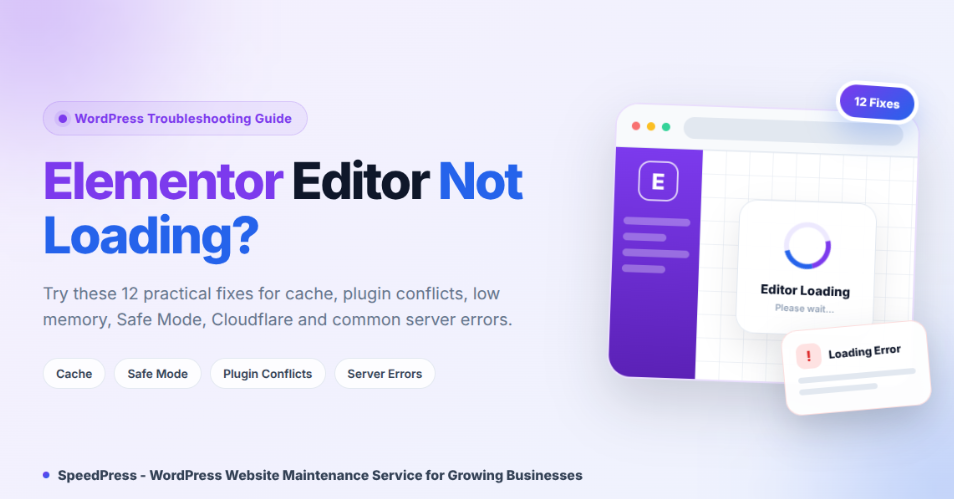
You click Edit with Elementor, but the loading icon never stops. Perhaps you see a grey screen, a blank preview, or an empty widget panel.
This issue can block urgent page changes. It may also affect only one page, while the rest of your website works normally.
Usually, the cause is a browser problem, old cache, low memory, or a software conflict. However, server security rules can also block the editor.
This guide explains 12 practical fixes for Elementor not loading. You’ll start with safe checks before moving to server-level troubleshooting.
How to Fix Elementor Not Loading Quickly
When Elementor isn’t loading, first test the editor in an incognito window. Next, clear every cache and update WordPress, Elementor, Elementor Pro, and your theme. Then use Safe Mode to find plugin or theme conflicts. If the problem continues, check memory, custom code, Cloudflare settings, browser console errors, and server logs.
What Does Elementor Not Loading Mean?
Elementor is a visual WordPress website builder. It lets you create pages with a drag-and-drop editor instead of writing code.
The editor loads a widget panel, page preview, browser scripts, and server responses. If one part fails, Elementor may remain stuck on a loading screen.
Common signs include:
- A spinning Elementor logo
- A blank or grey editor screen
- An empty widget panel
- A “Preview Could Not Be Loaded” message
- An editor that opens on some pages only
Elementor is useful for beginners, businesses, bloggers, and designers. Still, it may not be suitable for self-repair when you lack administrator or hosting access. In that case, contact the site owner or hosting provider.
What You Need Before Fixing Elementor Not Loading
Before making changes, prepare:
- WordPress administrator access
- Hosting panel access, when available
- A recent files-and-database backup
- A staging site for plugin or theme tests
- Your hosting support contact
- The affected page URL and error time
Also, change only one setting at a time. That way, you can identify the real cause.
How to Fix Elementor Not Loading
Step 1: Test Elementor in an Incognito Window
First, rule out browser cache and extensions.
In Chrome, go to:
Three-dot menu → New Incognito Window
Log in to WordPress and open the same page. You can also try another updated browser.
If Elementor works there, clear your normal browser cache. Then disable extensions one by one. Ad blockers and script-blocking tools may interfere with editor files.
Elementor recommends incognito mode for separating browser issues from website issues.
Step 2: Clear Cache When Elementor Is Not Loading
Next, remove old files that may conflict with a newer Elementor version.
Clear:
- Browser cache
- WordPress cache-plugin cache
- Hosting or server cache
- Content delivery network, or CDN, cache
Then go to:
WP Admin → Elementor → Editor → Home → Tools
Click Clear Files & Data, followed by Save Changes. This makes Elementor rebuild its generated files and data.
Afterwards, open the editor in a fresh tab.
Step 3: Update Software When Elementor Is Not Loading
Outdated or mismatched software can stop the editor.
First, make a backup. Then go to:
Dashboard → Updates
Update:
- WordPress
- Elementor
- Elementor Pro
- Your active theme
- Trusted add-ons
Elementor and Elementor Pro must use compatible versions. Therefore, don’t update only one and leave the other far behind.
Elementor’s troubleshooting guidance specifically warns about version mismatches.
Step 4: Check System Requirements and Memory
Now, check whether the server has enough resources.
Go to:
Elementor → Editor → System
On some installations, this appears as Elementor → System Info.
Elementor currently lists a 256 MB WordPress memory limit for Elementor and Elementor Pro alone. It recommends 512 MB and lists 768 MB for best performance.
Plugin-heavy sites, especially WooCommerce sites, may need more memory.
If memory is low, ask your host to increase both PHP memory and WordPress memory. Don’t edit wp-config.php, php.ini, or .htaccess unless you can restore the site.
Step 5: Enable Elementor Safe Mode
Safe Mode checks whether a plugin or theme is blocking the editor.
Go to:
Dashboard → Elementor → Tools → Safe Mode
Choose Enable, then click Save Changes.
Now open the affected page again. Safe Mode loads the editor without the active theme and most plugins.
It affects the editing session, not the normal visitor view. Also, only administrators can enable it.
If Elementor loads, continue to the next two steps.
Step 6: Find Plugin Conflicts When Elementor Is Not Loading
Use a staging site when possible.
Go to:
Dashboard → Plugins → Installed Plugins
Temporarily deactivate every plugin except:
- Elementor
- Elementor Pro, when used
Test the editor. If it loads, reactivate one plugin at a time. Test after each activation.
The plugin that brings back the problem is the likely conflict. Update it, contact its developer, or use a suitable alternative.
This is Elementor’s recommended conflict test.
However, be careful on live shops. Deactivating checkout, membership, form, or security plugins may interrupt site functions.
Step 7: Test Elementor Theme and Preloader Conflicts
Themes can affect page templates, scripts, and editor previews.
Temporarily activate Hello Elementor or a default WordPress theme:
Dashboard → Appearance → Themes
Then test the editor again.
If it loads, update your original theme and contact its developer. Also, disable any theme preloader in the theme settings or WordPress Customizer.
Elementor confirms that a theme preloader can interfere with editor loading.
Step 8: Disable Custom Code and V4 Elements
Incorrect custom code can prevent Elementor from starting.
If you use Elementor Pro custom code, go to:
Elementor → Editor → Custom Elements → Code
Hover over each recent code item. Click Quick Edit, change its status to Draft, and select Update.
In addition, temporarily disable Elementor V4 elements when they’re active. Elementor currently labels V4 elements as beta and notes that they may cause loading-screen errors.
If the editor loads, restore each item separately to find the cause.
Step 9: Enable Elementor’s Editor Loader Method
Some server configurations need Elementor’s alternative loading method.
Go to:
Dashboard → Elementor → Settings → Advanced
Set Switch Editor Loader Method to Enable. Then save the changes and reopen the editor.
This option is an official Elementor troubleshooting step, especially when Elementor Pro fails to load correctly.
Step 10: Pause Optimisation and Cloudflare Features
Performance tools can delay, combine, or change JavaScript files.
Temporarily disable:
- JavaScript delay or defer options
- JavaScript and CSS combining
- Aggressive minification
- WordPress optimisation plugins
- Server-level optimisation
- Cloudflare Rocket Loader
Next, clear all caches and retest.
For Cloudflare users, Elementor says Rocket Loader may delay or block editor scripts. You can disable it temporarily or create a rule that bypasses it during Elementor editing.
After testing, re-enable each feature one at a time.
Step 11: Fix Elementor Not Loading on One Page
If only one page fails, create a blank test page:
Dashboard → Pages → Add New → Edit with Elementor
If the blank page works, the original page may contain a damaged widget or template.
For a confirmed Loop Grid error, go to:
Elementor → Element Manager
Temporarily disable Loop. Open and save the affected page without the Loop widget.
Then re-enable Loop and rebuild the widget from scratch.
Only use this method when the page contains Loop elements or the browser console shows a Loop-related error. Elementor presents it as a specific corrupted-widget fix, not a universal repair.
Step 12: Check Elementor Console and Server Errors
Finally, check for a blocked request or server failure.
Right-click the grey editor area. Select Inspect, then open Console. Look for red errors.
Ask your host to check:
- PHP error logs
- HTTP 500 errors
- ModSecurity blocks
- PHP Zlib
max_input_vars- WordPress and PHP memory
- File permissions
- Cross-origin restrictions
If the console mentions X-Frame-Options: DENY, ask the host to review the rule.
Elementor recommends SAMEORIGIN when this header blocks its editor iframe. However, don’t change security headers without checking the exact error first.
You can also download system details from:
Elementor → Editor → System → Download System Info
Share that file only with trusted support.
Elementor Troubleshooting Tips and Common Mistakes
Start With Reversible Fixes
Begin with incognito mode and cache clearing. These steps are fast and unlikely to affect visitors.
Test One Change at a Time
If you change five settings together, you won’t know which one worked. Instead, test Elementor after every change.
Use Staging for Conflict Tests
Plugin and theme changes may affect forms, shops, or memberships. Therefore, use a staging copy when the live site is busy.
Don’t Keep Plain Permalinks as a Quick Fix
For a “Preview Could Not Be Loaded” error, switching to Plain permalinks can be a diagnostic test.
However, ask your host to fix the server rewrite rules before choosing a permanent structure.
Check URLs After Migration
After moving a site, confirm that WordPress Address and Site Address match correctly.
A URL mismatch can stop Elementor from working properly.
Safety Tips Before Fixing Elementor
Create a full backup before updates, file edits, or conflict tests.
Also, don’t share administrator passwords, licence keys, customer data, or server credentials with unknown helpers.
Only install Elementor and add-ons from trusted sources. Finally, let your hosting provider handle server headers, ModSecurity, and PHP configuration when you’re unsure.
Troubleshooting Elementor Editor Loading Problems
Problem 1: Elementor Works Only in Incognito Mode
Possible Cause: Browser cache or an extension
Solution: Clear browser data. Then disable extensions individually.
Problem 2: Elementor Works in Safe Mode
Possible Cause: A plugin, theme, or experimental feature conflict
Solution: Test plugins one by one. Next, test the theme and recent features.
Problem 3: Only One Page Fails
Possible Cause: A corrupted widget, template, or Loop Grid
Solution: Test a blank page. Then rebuild the confirmed problem element.
Problem 4: The Editor Shows a 500 or Frame Error
Possible Cause: PHP failure, memory exhaustion, ModSecurity, or X-Frame-Options
Solution: Save the console error and time. Then ask your host to check the matching server log.
Frequently Asked Questions
Why is Elementor stuck on the loading screen?
The most common causes are cache, browser extensions, low memory, plugin conflicts, theme conflicts, or mismatched Elementor versions.
First, test incognito mode and clear all caches. Then update compatible software and use Safe Mode. If those steps fail, inspect the browser console and ask your host to check server logs.
How much memory does Elementor need?
Elementor currently lists 256 MB of WordPress memory for Elementor and Elementor Pro alone. It recommends 512 MB and lists 768 MB for best performance.
However, WooCommerce and other resource-heavy plugins may increase your site’s needs. Check both the WordPress memory limit and the server’s PHP memory limit.
Will Elementor Safe Mode affect visitors?
No. Safe Mode is designed to change how the Elementor editor loads for the logged-in administrator. Visitors should continue seeing the normal website.
Still, create a backup before deeper troubleshooting. Also, remember that Safe Mode may not isolate every script used inside third-party widgets.
Can a cache plugin stop Elementor from loading?
Yes. Cache and optimisation plugins can serve old files or change how JavaScript loads.
Temporarily disable their optimisation features, clear all cache layers, and retest. Afterwards, enable each option separately. This process helps you find the exact setting without losing every performance feature.
Why does Elementor load on some pages only?
A single page may contain a corrupted widget, Loop Grid, popup, template, or dynamic-content setting.
First, create a blank Elementor page. If it works, inspect the affected page’s browser console. Then remove or rebuild only the confirmed problem element instead of changing the whole website.
When should I contact my hosting provider?
Contact your host when you see HTTP 500, 403, cross-origin, frame, memory, or ModSecurity errors.
You should also contact them when plugin and theme tests don’t help. Send the exact error time, browser-console message, affected URL, and Elementor System Info file so they can match the request with server logs.
Final Thoughts on Fixing Elementor Not Loading
When Elementor not loading stops your work, begin with the simplest checks. Test incognito mode, clear every cache, and update compatible software.
Next, use Safe Mode to identify plugin or theme conflicts. Then check memory, custom code, V4 elements, optimisation tools, and page-specific corruption.
However, browser fixes can’t solve every server problem. If you find a 500, ModSecurity, or frame-header error, send the evidence to your host.
Your best next step is to back up your site, then follow Steps 1 to 3 in order.