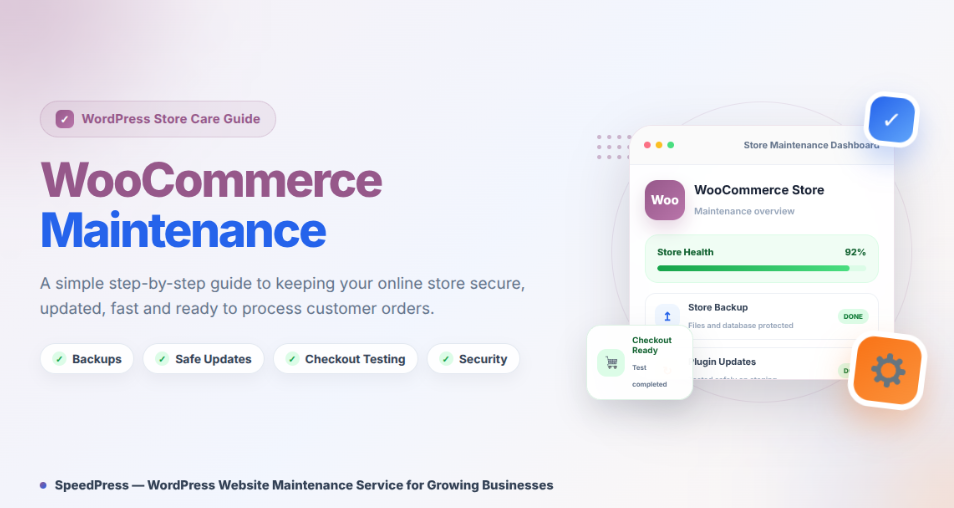
Is your WordPress store slow, outdated, or showing strange errors? Regular WooCommerce Maintenance can help you prevent these common problems.
Small problems can block payments and confuse customers. They can also delay emails, orders, and refunds.
As a result, WooCommerce Maintenance keeps your store stable and secure. It also helps you find problems before customers do.
This guide explains what to check, where to click, and why each task matters.
Quick Answer
WooCommerce Maintenance means regularly backing up, updating, testing, securing, and checking your online store. A safe process uses a staging site before live changes. You should also test checkout, review logs, inspect scheduled actions, and confirm emails work. Regular care reduces avoidable downtime, but it cannot prevent every technical problem.
What Is WooCommerce Maintenance?
WooCommerce Maintenance is the routine care of a WooCommerce store.
It covers WordPress, WooCommerce, themes, extensions, hosting, security, and store functions. These parts work together. One failure can affect checkout.
Maintenance usually follows a simple cycle:
- Check the store.
- Create a complete backup.
- Test changes on staging.
- Update compatible software.
- Test buying and order tasks.
- Monitor errors after launch.
For example, a staging site is a private copy of your live store. WooCommerce recommends using it to test updates and checkout safely.
This suits owners, administrators, agencies, and developers. Managed hosting may handle server tasks. It cannot verify your products, payments, taxes, or business rules.
However, serious hacks, database damage, and custom-code failures may require expert help.
What You Need Before Starting WooCommerce Maintenance
Prepare these items first:
- A WordPress Administrator account.
- Access to your hosting control panel.
- A full files-and-database backup.
- A staging site.
- Test payment details from your gateway.
- A list of important store functions.
- A quiet maintenance period.
Also, check your hosting environment too. WooCommerce currently recommends WordPress 6.9+, PHP 8.3+, MySQL 8.0+ or MariaDB 10.6+, HTTPS, and at least 256 MB WordPress memory. Older supported environments may carry greater security risks.
WooCommerce Maintenance: Step-by-Step Guide
Step 1: Check Your Store Before WooCommerce Maintenance
Start with a clear baseline. It helps you compare results later.
Go to:
WooCommerce → Status
Review software versions, server settings, active features, database details, and template warnings. The System Status Report is designed for store troubleshooting.
Next, go to:
Tools → Site Health
Check Status for critical issues. Open Info for technical details. WordPress reports problems involving updates, PHP, security, plugins, HTTPS, and scheduled tasks.
Save both reports privately. They may contain sensitive technical information.
Expected result: You have a dated record of the store before changes.
Step 2: Create a Backup for WooCommerce Maintenance
Back up both store files and the database.
Files contain WordPress, themes, plugins, media, and custom code. The database contains products, settings, customers, and orders.
Use your host’s backup system or a trusted backup tool. WordPress and WooCommerce both advise backing up before updates.
Then, confirm the backup location, date, and restore method.
Stores with subscriptions need extra care. Restoring an old live backup can conflict with newer orders or renewal data. WooCommerce describes subscription restoration as complex.
Expected result: You have a recent, restorable backup stored safely.
Step 3: Prepare a Staging Site for WooCommerce Maintenance
Create staging through your host or staging tool.
Make sure staging is not accepting real orders. Disable live shipping, fulfilment, and marketing connections where needed.
Use sandbox or test mode for payments. WooCommerce advises placing test orders on staging, not the live store. Test orders can trigger emails and appear in reports.
Finally, protect staging from visitors and search indexing.
Expected result: You can test changes without risking live orders.
Step 4: Review Updates Before Installing Them
Go to:
Dashboard → Updates
Then check:
Plugins → Installed Plugins
Read update notes and compatibility details for every important component.
WooCommerce’s self-service sequence starts with a full backup. It then updates third-party plugins, Woo extensions, WooCommerce, WordPress, and the theme.
Therefore, follow that order on staging. Large stores may need a custom deployment plan.
Never click every update blindly. One incompatible extension can break checkout.
Expected result: Staging uses current, compatible software.
Step 5: Complete Any WooCommerce Database Update
A WooCommerce update may show a database notice.
Click:
Update WooCommerce Database
Only do this after creating a backup. The database update aligns stored data with the new WooCommerce version.
Large databases may process tasks in the background.
Expected result: WooCommerce code and database structure match.
Step 6: Test the Complete Customer Journey
Do not only open the homepage.
Test these actions:
- Open a product.
- Select variations.
- Add and remove cart items.
- Apply a valid coupon.
- Calculate shipping.
- Complete checkout in test mode.
- Confirm the order appears.
- Check stock reduction.
- Test refund steps where supported.
- Check customer and admin emails.
- Open My Account.
- Test downloads or subscriptions when used.
WooCommerce notes that test orders can affect emails, analytics, and integrations. Remove them after testing.
Also, test on mobile, desktop, guest, and customer accounts. If you want ongoing help with updates, testing, security, and store troubleshooting, our WooCommerce maintenance services can help keep your store running reliably.
Expected result: A customer can complete every essential buying step.
Step 7: Check Logs and Scheduled Actions
Go to:
WooCommerce → Status → Logs
Look for recent repeated errors. Focus on payment, email, fatal-error, and extension logs. WooCommerce provides this area for viewing logged events.
Then go to:
WooCommerce → Status → Scheduled Actions
Filter for Failed and Pending actions. These background jobs support emails, payment processing, sale prices, and order updates. Low traffic can delay WP-Cron tasks.
Record the action name and error before changing anything.
Expected result: Important background work is running normally.
Step 8: Check Cache and Store Pages
Clear your plugin, server, and browser caches after updates.
Open the Shop, Product, Cart, Checkout, and My Account pages. Cart and Checkout should normally bypass page caching because they contain customer-specific data.
If content looks old, test in a private browser window.
Expected result: Customers see current products, prices, carts, and checkout details.
Step 9: Review Security and Access
Go to:
Users → All Users
Remove unused accounts. Give each person only the access their job requires. WordPress roles control actions such as editing, installing plugins, and managing users.
Check these items:
- HTTPS works across the store.
- Administrator passwords are unique.
- Two-factor authentication is enabled through a trusted plugin or identity provider, where available.
- Unknown plugins and themes are removed.
- Debug messages are not visible publicly.
- Backups are protected from public access.
Site Health warns that public debug information may expose sensitive data.
Expected result: Access is limited and obvious security gaps are removed.
Step 10: Update the Live Store Carefully
Choose a low-traffic period.
Create one more live backup. Then place the store in Coming soon or maintenance mode.
WooCommerce recommends preventing checkout during production updates. A payment during an update may lead to lost order data.
Apply the tested changes. Clear caches and repeat the checkout test.
For planned downtime, the server should return a temporary 503 Service Unavailable response. Not every maintenance plugin sends a 503 response automatically, so verify the actual HTTP status. A normal 200 response may let search engines index the maintenance page. Long 503 periods can also harm indexing and may require a different closure plan.
Finally, reopen the store only after essential tests pass. If you need ongoing updates, testing, monitoring, and technical support, professional WooCommerce maintenance can help keep your store reliable.
A Practical WooCommerce Maintenance Schedule
Practical recommendation: Adjust this schedule to your order volume.
Daily:
- Check failed payments and unusual order statuses.
- Confirm important customer emails are arriving.
- Review urgent security or uptime alerts.
Weekly:
- Verify backups.
- Review updates.
- Test checkout.
- Check logs and failed scheduled actions.
- Confirm key pages work.
Monthly:
- Review Site Health and System Status.
- Remove unused accounts, plugins, and themes.
- Check payment, tax, shipping, and email settings.
- Review mobile speed and broken links.
Quarterly:
- Test a backup restore on staging.
- Review hosting capacity.
- Audit extensions and custom code.
- Test refunds, subscriptions, and recovery procedures.
WooCommerce Maintenance Tips and Common Mistakes
1. Never Treat a Backup as Verified
A backup is useful only when you can restore it. Test restoration on staging.
2. Do Not Test Real Payments Unnecessarily
Use your gateway’s test mode. Real test-and-refund transactions may still create fees.
3. Avoid Updating During Busy Sales Periods
Customers may submit orders during changing database processes. Use a quiet window.
4. Keep a Change Log
Record dates, versions, changes, and test results. This makes later troubleshooting faster.
5. Do Not Ignore Repeated Failed Actions
One failure may be temporary. Repeated failures may delay emails, payments, or renewals.
Safety and Important Considerations
Backups contain customer and order data. Store them securely.
Never share API keys, passwords, system reports, or raw logs publicly. Remove sensitive details before sending reports to support.
Do not restore an old database over a busy live store casually. You may erase newer orders, customer changes, or stock updates.
Payment, tax, and privacy duties vary by country. Maintenance checks technical operation. It does not replace legal, accounting, or security advice.
WooCommerce Maintenance Troubleshooting
Problem: Checkout keeps loading.
Possible Cause: Cached checkout data or a plugin conflict.
Solution: Clear all cache layers. Confirm Checkout is excluded from page caching. Test conflicts on staging by switching themes and reactivating plugins one by one.
Problem: Order emails are missing.
Possible Cause: Hosting mail failure or poor email delivery.
Solution: Check WooCommerce → Status → Logs. Confirm the email is enabled. Then test an authenticated SMTP provider. WooCommerce says many email issues occur after message generation, during delivery.
Problem: Scheduled actions keep failing.
Possible Cause: WP-Cron, server, plugin, or timeout problems.
Solution: Open WooCommerce → Status → Scheduled Actions. Record the failed action and log. Ask your host to check cron and server errors before rerunning tasks.
Problem: The store breaks after an update.
Possible Cause: A theme or plugin conflict.
Solution: Restore only the files or data needed from your verified backup. Avoid restoring an old full database on a busy live store because newer orders may be lost. Reproduce the issue on staging. Use a default theme and reactivate plugins individually.
Frequently Asked Questions
How Often Should I Perform WooCommerce Maintenance?
Check orders, payments, and alerts daily. Perform updates and checkout testing weekly or when important releases appear. Run deeper access, performance, and recovery checks monthly or quarterly. A high-volume store needs more frequent monitoring than a small catalogue site.
Can I Maintain WooCommerce Myself?
Yes, for routine checks and carefully tested updates. You need Administrator access, backups, staging, and basic troubleshooting skills. Hire a qualified specialist for hacks, database damage, custom integrations, failed migrations, or repeated checkout problems.
How Much Does WooCommerce Maintenance Cost?
There is no single required maintenance price. Your cost depends on hosting, paid extensions, backup tools, security services, store complexity, and professional time. A simple store may need fewer resources. Subscriptions, custom code, and many integrations usually require more testing.
Should I Enable Automatic Updates?
Automatic updates can quickly deliver fixes. However, they can also create compatibility problems without testing. Use them selectively. Keep automatic backups and uptime alerts active. For payment, checkout, or heavily customised extensions, staging tests are usually safer before live updates.
Does Maintenance Mode Hurt SEO?
Brief, correctly configured maintenance usually causes limited disruption. Return a 503 status during genuine temporary downtime. Do not leave it active for a long period. Google says extended 503 responses may eventually remove pages from its index.
What Is the Most Important WooCommerce Maintenance Task?
A verified backup is the foundation. It gives you a recovery path when updates fail. However, backups alone are not enough. You must also test checkout, payments, emails, scheduled actions, and security.
Final Thoughts
WooCommerce Maintenance is an ongoing process, not a one-time repair.
Back up first. Test on staging. Update carefully. Then verify the full customer journey.
Regular checks reduce avoidable failures. They cannot remove every risk, especially with custom code or external services.
Your next step is simple: create a full backup and test one checkout today.