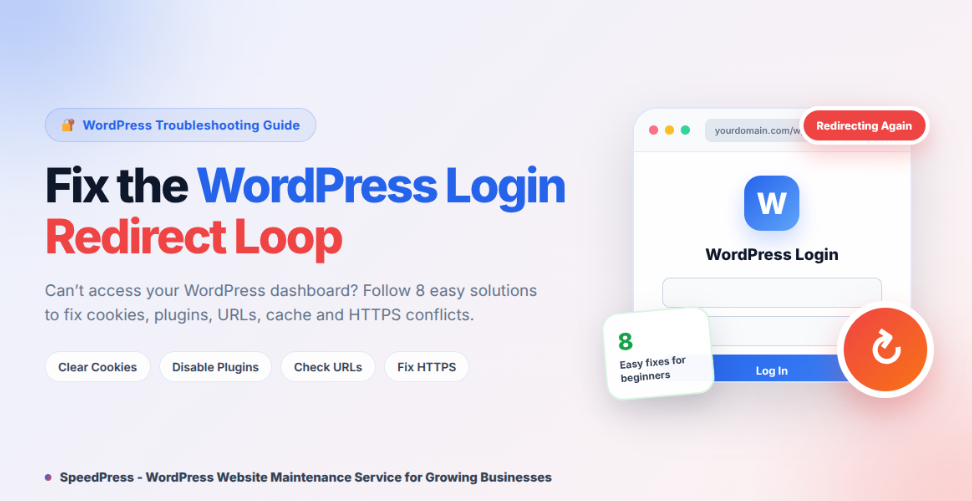
A WordPress login redirect loop happens when you enter the correct password, but WordPress sends you back to the login page.
You try once more. Still, the dashboard doesn’t open.
This problem is called a WordPress login redirect loop. It can stop you from publishing, updating, or managing your website.
This guide explains eight easy solutions. You’ll start with simple browser checks. After that, you’ll test plugins, URLs, server rules, and HTTPS.
Quick Answer: How to Fix a WordPress Login Redirect Loop
First, clear your browser cookies and cache. Next, purge your WordPress, hosting, and Content Delivery Network (CDN) caches. If the problem remains, disable plugins and test a default theme. Then check WP_HOME, WP_SITEURL, rewrite rules, and HTTPS settings. Always back up your website before editing files or database values.
What Is a WordPress Login Redirect Loop?
A login redirect loop happens after you submit your details. Instead of opening Dashboard, WordPress sends you back to the login page.
WordPress uses browser cookies to confirm your login. Therefore, blocked, outdated, or mismatched cookies can stop the login session.
Common causes include:
- Old cookies or browser cache
- Cached login pages
- A plugin or theme conflict
- Incorrect website addresses
- Broken server redirect rules
- Conflicting HTTP and HTTPS settings
- Cloudflare or another reverse proxy
This guide is for self-hosted WordPress websites. Managed, multisite, or custom proxy setups may need hosting support.
Hypothetical Example: Your site changes from http://example.com to https://www.example.com. However, WordPress still uses the old address. The cookie may not match, so the login page returns.
What You Need Before Starting
Prepare these items first:
- Your WordPress login details
- Access to your hosting account
- File Manager or SFTP access
- A recent files and database backup
- Your CDN or Cloudflare account, if used
- A plain-text editor
8 Ways to Fix the WordPress Login Redirect Loop
Try these solutions in order to fix the WordPress login redirect loop. After each step, test the login again.
Step 1: Open the Correct WordPress Login Page
First, open a private or incognito browser window.
Then visit:
https://yourdomain.com/wp-login.php
Replace the example with your real domain. If WordPress uses a subfolder, include it.
For example:
https://yourdomain.com/blog/wp-login.php
Enter your details and select Log In.
If this works, your normal browser may contain old site data. A browser extension may also be interfering.
Also, avoid saved links containing redirect_to or reauth. Instead, bookmark the clean login address.
Step 2: Clear Cookies to Fix the WordPress Login Redirect Loop
WordPress needs cookies for authentication. For this reason, clearing site cookies is an official login troubleshooting step.
Open your browser settings. The path may look like:
Settings → Privacy and Security → Cookies and Site Data
Search for your domain. Then delete data for both versions, when present:
example.comwww.example.com
Next, clear cached files for the site.
Once finished, close the browser. Open it again and test the login page.
You don’t need to delete every saved password. Remove only your site’s data when possible.
Step 3: Clear Cache to Stop WordPress Login Redirects
Next, clear each cache layer. This helps you rule out an old cached login response.
First, purge your WordPress caching plugin. The menu name depends on the plugin.
It may look like:
Dashboard → Cache Plugin → Purge All Cache
If you can’t open WordPress, use your hosting panel:
Hosting Panel → Cache → Purge
Also, purge your CDN cache when you use one.
For Cloudflare, the path may be:
Cloudflare → Caching → Configuration → Purge Cache
After that, test from a private window.
If your caching tool supports exclusions, exclude:
/wp-login.php/wp-admin/- Your custom login path
Don’t disable all caching permanently. Instead, exclude only the login and admin areas.
Step 4: Disable Plugins Causing a WordPress Login Redirect Loop
A WordPress plugins may change redirects, cookies, security checks, or login rules. WordPress recommends disabling all plugins when testing a possible conflict.
Open File Manager or connect through SFTP. Then go to:
public_html → wp-content
Rename the plugins folder to:
plugins.hold
Now log in and open:
https://yourdomain.com/wp-admin/plugins.php
Opening the Plugins screen lets WordPress record the missing plugins as inactive.
Next, rename plugins.hold back to plugins. This follows WordPress’s manual plugin deactivation process.
Then go to:
Dashboard → Plugins → Installed Plugins
Activate one plugin. Test the login. Repeat until the loop returns.
The last activated plugin is the likely cause. Update it, replace it, or contact its developer.
Also check:
wp-content → mu-plugins
Must-use plugins load automatically. You can’t disable them from the normal Plugins list. Therefore, ask your host before changing host-managed files.
Step 5: Test the Theme for WordPress Login Errors
A theme may also contain code that causes a conflict. WordPress recommends testing a default theme during troubleshooting.
Before continuing, confirm that a default WordPress theme is installed. WordPress needs an available fallback theme for this test.
Then open:
public_html → wp-content → themes
Rename your active theme folder. For example:
my-theme → my-theme-old
Now test the login page.
If the dashboard opens, the theme may contain a conflict.
Restore the folder name. Then update the theme or contact its developer.
Your site design may change during this test. Therefore, use a staging site when possible.
FAQs About the WordPress Login Redirect Loop
Incorrect WordPress addresses can break login cookies and redirects. WordPress’s official login guide recommends checking both values during a redirect loop.
Open the main WordPress folder. Then make a backup of:
wp-config.php
For a standard installation, you can temporarily add:
define( 'WP_HOME', 'https://example.com' );
define( 'WP_SITEURL', 'https://example.com' );
Replace the example with your real address. Add the lines above the “stop editing” comment.
For most standard sites, both values match. However, they can differ when WordPress core files use another directory.
WP_HOME is the public website address. WP_SITEURL points to the WordPress installation. Hard-coding them also locks the matching fields under Settings → General.
Use the correct address format:
- Choose either
wwwor non-www - Use the correct
https://protocol - Remove accidental spaces
- Don’t add an ending slash
Save the file. Then test the login again.
Step 7: Reset WordPress Redirect Rules
A broken server rule may send the login page back to itself.
On Apache or LiteSpeed, open the site’s main folder. Enable Show Hidden Files when needed.
Rename:
.htaccess → .htaccess-old
Don’t delete the original file. Then test the login.
If the problem is fixed, go to:
Dashboard → Settings → Permalinks → Save Changes
You don’t need to change an option. Saving can refresh WordPress rewrite rules.
However, this step doesn’t apply to every server.
Nginx uses server configuration instead of .htaccess. Windows IIS may use web.config.
Also, check domain forwarding and hosting redirects. Remove any rule that sends a page back to itself.
Step 8: Fix HTTPS Login Redirect Conflicts
Conflicting HTTP and HTTPS rules can create an endless redirect.
For example, Cloudflare may contact your server over HTTP. Meanwhile, the server forces every request to HTTPS. With Flexible mode, this setup can create a redirect loop.
If you use Cloudflare, open:
Cloudflare → SSL/TLS → Overview
Choose the mode that matches your origin server:
- Full (Strict): Use it with a valid, unexpired, matching origin certificate.
- Full: Use it when the origin supports HTTPS, but its certificate can’t be validated.
- Flexible: It doesn’t encrypt traffic between Cloudflare and your origin server.
Because of this limitation, avoid Flexible for login pages and sensitive data.
Cloudflare also warns that conflicting origin redirects may create redirect loops.
Review these settings:
- SSL/TLS → Edge Certificates → Always Use HTTPS
- Cloudflare Redirect Rules
- Hosting HTTPS redirects
- SSL or security plugins
- Domain forwarding
- Reverse-proxy settings
Use one clear HTTPS redirect path.
Don’t change HTTP Strict Transport Security (HSTS) unless you understand it. A wrong setting can make recovery harder.
Tips to Prevent WordPress Login Redirect Problems
Change One Setting at a Time
Make one change. Then test the login.
Otherwise, you won’t know which solution worked.
Test Both Domain Versions
Test both addresses:
example.comwww.example.com
A cookie or redirect may apply to only one version.
Rename Files Instead of Deleting Them
Use clear backup names:
.htaccess-oldplugins.holdmy-theme-old
This makes restoration easier.
Check the Most Recent Change
Think about what changed before the loop started.
For example, did you migrate the site, enable HTTPS, or add Cloudflare?
A recent plugin or theme update may also be involved.
Don’t Edit WordPress Core Files
Core-file changes may break your website. WordPress updates may also overwrite those changes. Use a backup to restore any damaged file.
Safety and Important Considerations
Back up both website files and the database first.
Also, use SFTP instead of plain FTP when available. SFTP encrypts your password and transferred data.
Never publish your hosting, database, or WordPress passwords.
Be careful after a website migration. Don’t run a basic database-wide SQL replacement.
WordPress data may contain serialized values. A basic replacement can damage this data.
Instead, use:
- WP-CLI’s serialization-safe
search-replace - A suitable WordPress migration tool
- Your hosting provider’s migration service
WP-CLI can safely handle serialized data during a search and replacement.
WordPress Login Redirect Loop Troubleshooting
Problem: Login Works in a Private Window
Possible Cause: Old cookies, cached files, or a browser extension.
Solution: Delete your domain’s browser data. Then disable extensions briefly and test again.
Problem: Login Works After Disabling Plugins
Possible Cause: A plugin conflict.
Solution: Restore the folder name. Then activate plugins individually until the loop returns.
Problem: The Whole Site Shows “Too Many Redirects”
Possible Cause: Conflicting domain, HTTPS, CDN, or server rules.
Solution: Check WordPress URLs, Cloudflare mode, .htaccess, and hosting redirects.
Problem: The Loop Started After a Migration
Possible Cause: WordPress still contains the old domain or protocol.
Solution: Correct WP_HOME and WP_SITEURL. Use a serialization-safe tool for wider database replacements.
FAQs About WordPress Login Redirects
Why does WordPress keep redirecting me to the login page?
WordPress may not be confirming your login cookie. Old browser data, incorrect site URLs, plugins, and HTTPS conflicts can cause this. First, clear cookies and caches. Then check plugins, website addresses, and redirect settings.
How do I fix a WordPress wp-admin redirect loop?
Open /wp-login.php directly in a private window. Next, clear every cache layer. If that fails, manually disable plugins. Then test a default theme and verify WP_HOME, WP_SITEURL, and HTTPS rules.
Why can I log in with one browser but not another?
The failing browser may have an old cookie, cached redirect, or conflicting extension. Delete site data for your domain. Then restart the browser and test again. Temporarily disable browser extensions when needed.
Can Cache Cause WordPress Login Redirect Problems?
Yes. Old browser, WordPress, hosting, or CDN cache may show an outdated login page. First, clear every cache layer. Then test the login in a private browser window. Also, exclude /wp-login.php and /wp-admin/ from full-page caching when possible.
Can Plugins Cause a WordPress Login Redirect Loop?
Yes. Security, caching, membership, and redirect plugins can change WordPress login rules. First, rename the plugins folder to disable all normal plugins. If the login works, restore the folder name. Then activate each plugin separately until you find the problem.
Can I fix the redirect loop without dashboard access?
Yes. Use File Manager or SFTP to rename plugin and theme folders. You can also edit wp-config.php and rename .htaccess. However, create a backup before changing files.
Final Thoughts
A WordPress login redirect loop usually comes from cookies, cache, plugins, website URLs, or HTTPS conflicts.
Start with the browser and cache fixes. Next, test plugins and a default theme. Finally, check WordPress addresses, server redirects, and Cloudflare settings.
Some proxy, multisite, or server issues need hosting support. Your first step is simple: open a private window and visit /wp-login.php.